
Owner: Aaron Fitzell
Last Updated: 2026-05-27
Version: 1.0
(have an idea for how this SOP could be better? Please fill out the form at the very bottom of this procedure)
Procedure Info
Tags
Tablet, App, Install, sop, procedure
Purpose
To guide the user on how to install the Driver Resource Hub app on a new device.
When to Use This SOP
Who Should Use This SOP
This SOP is can be used by all staff.
Tools and Resources Needed
Android Procedure
1. Open DRH website
You can open the Driver Resource Hub website in one of two ways
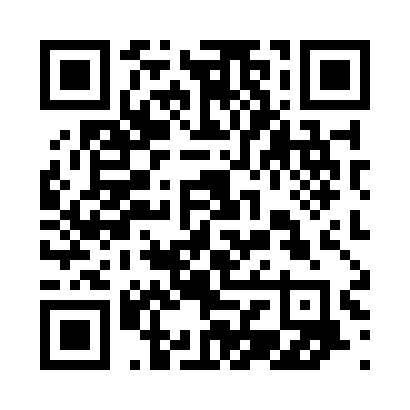
QR Code Method
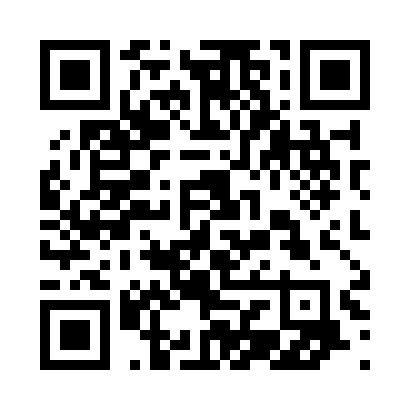
Open the camera app and point it at this QR code.
Browser Method
- Open a web browser app (Chrome)
- Navigate to: pan.drh.buswise.com.au
2. Install Web App
The Driver Resource Hub is a Web App. That means it can be installed without an app store.
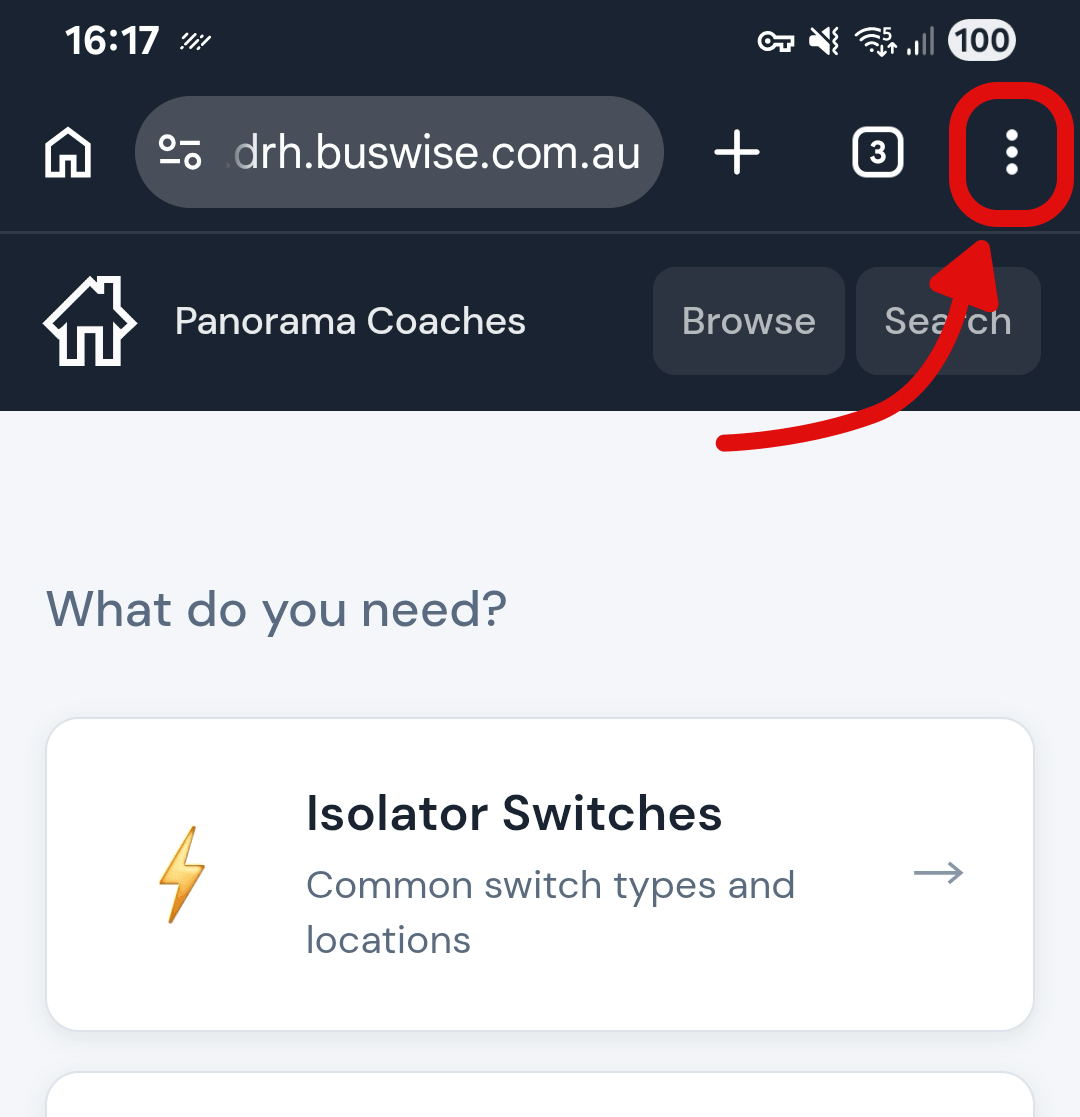
b. Tap Add to home screen
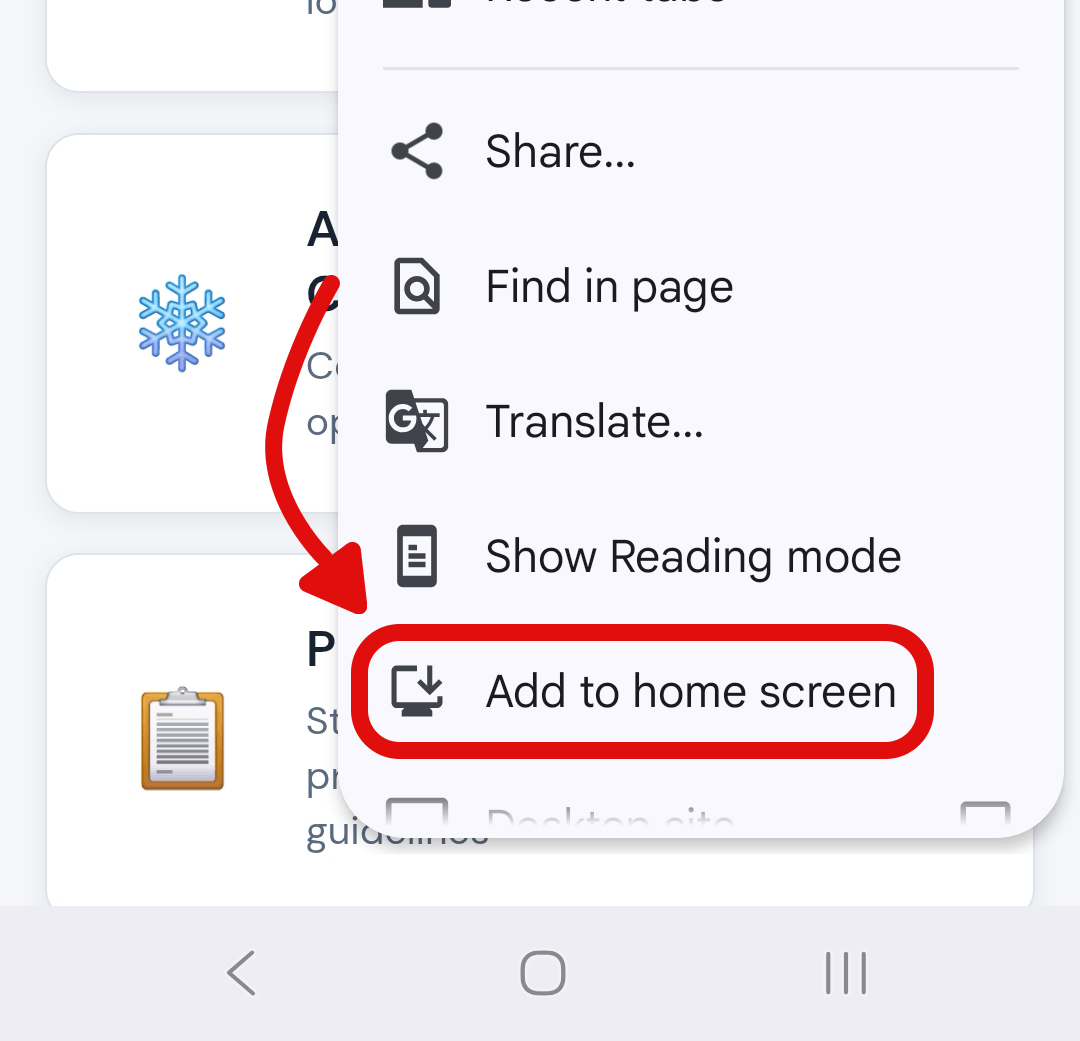
c. If an Install app window pops up, tap Install
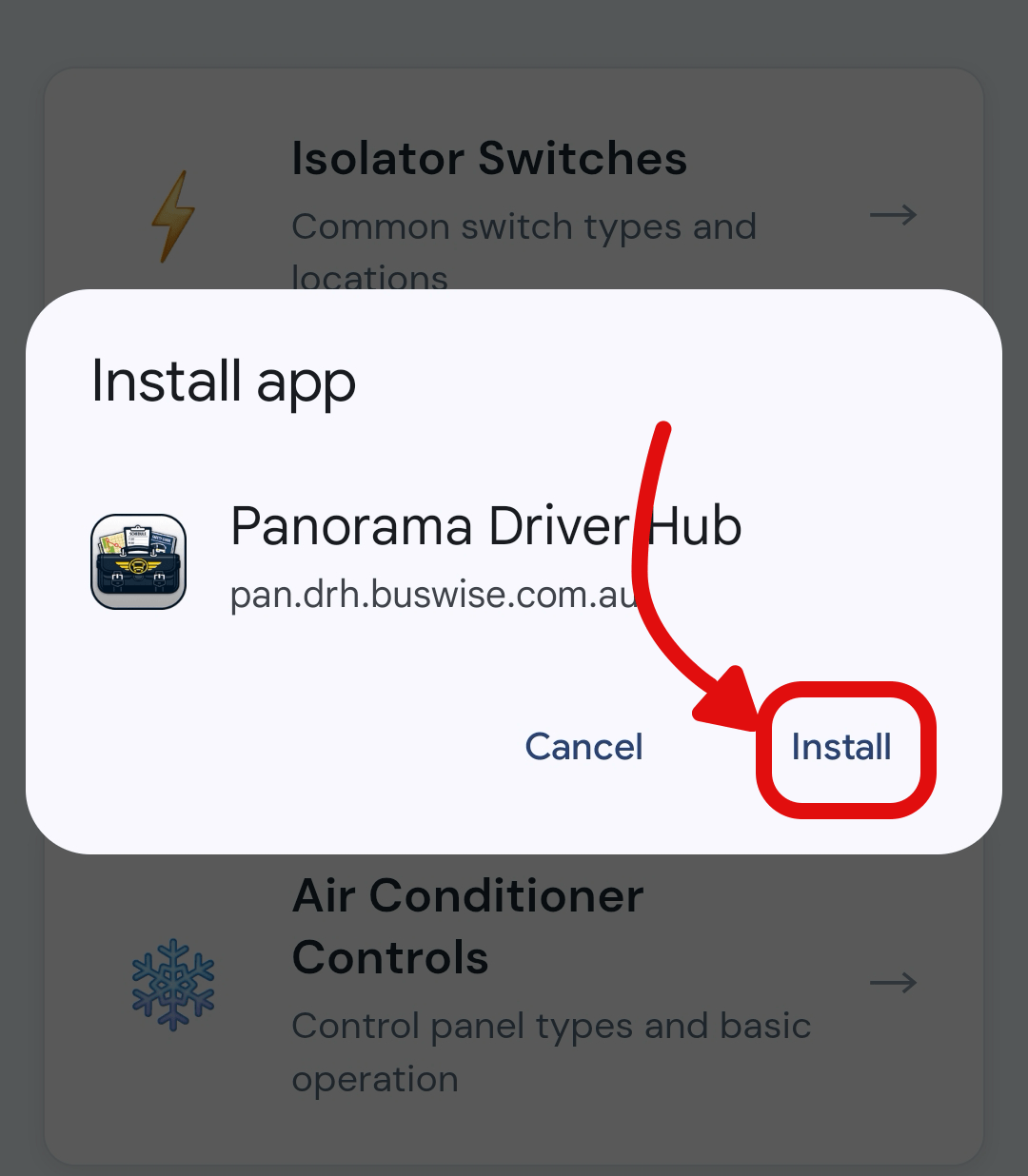
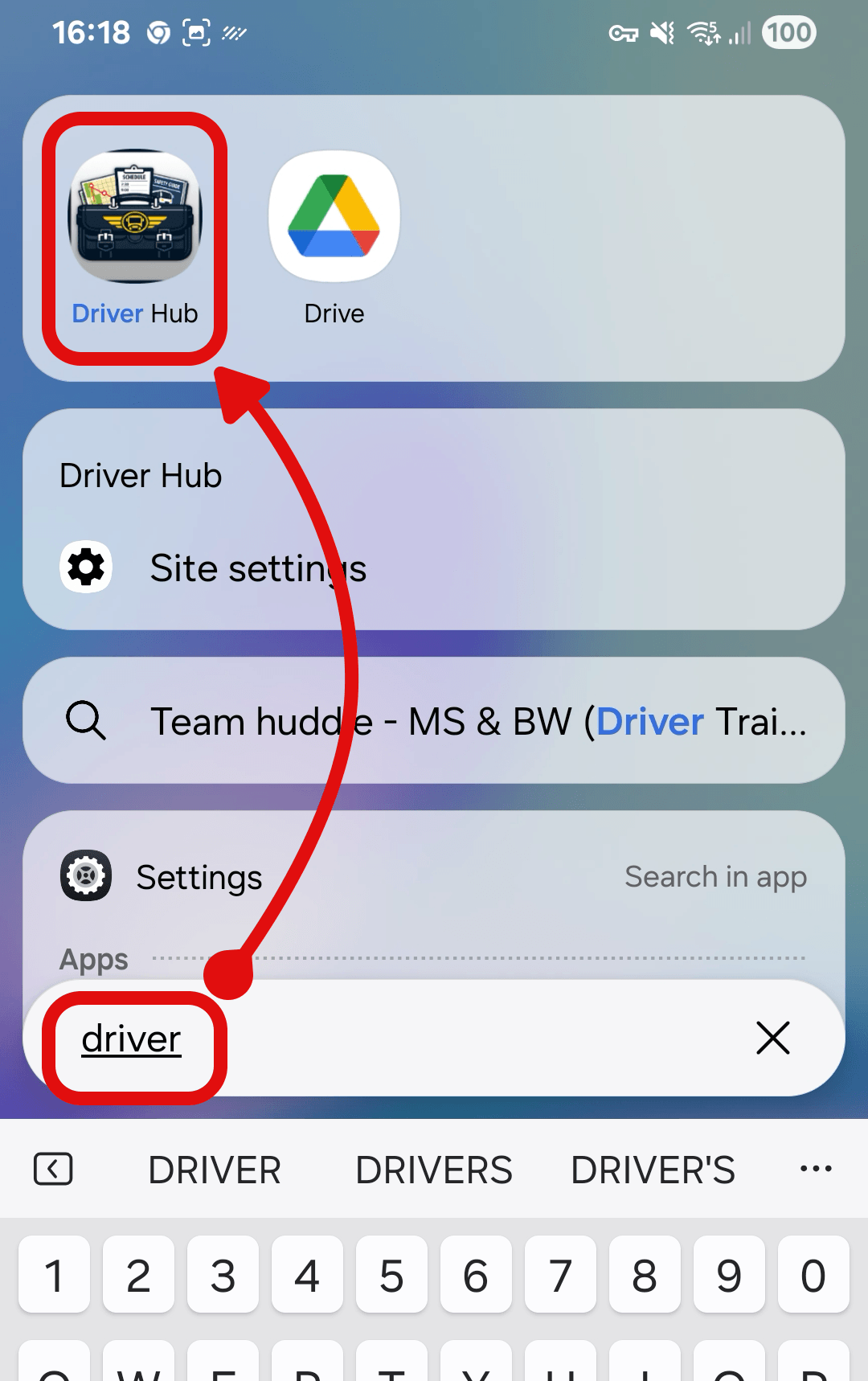
d. When installation is complete you can search for it on the home screen.
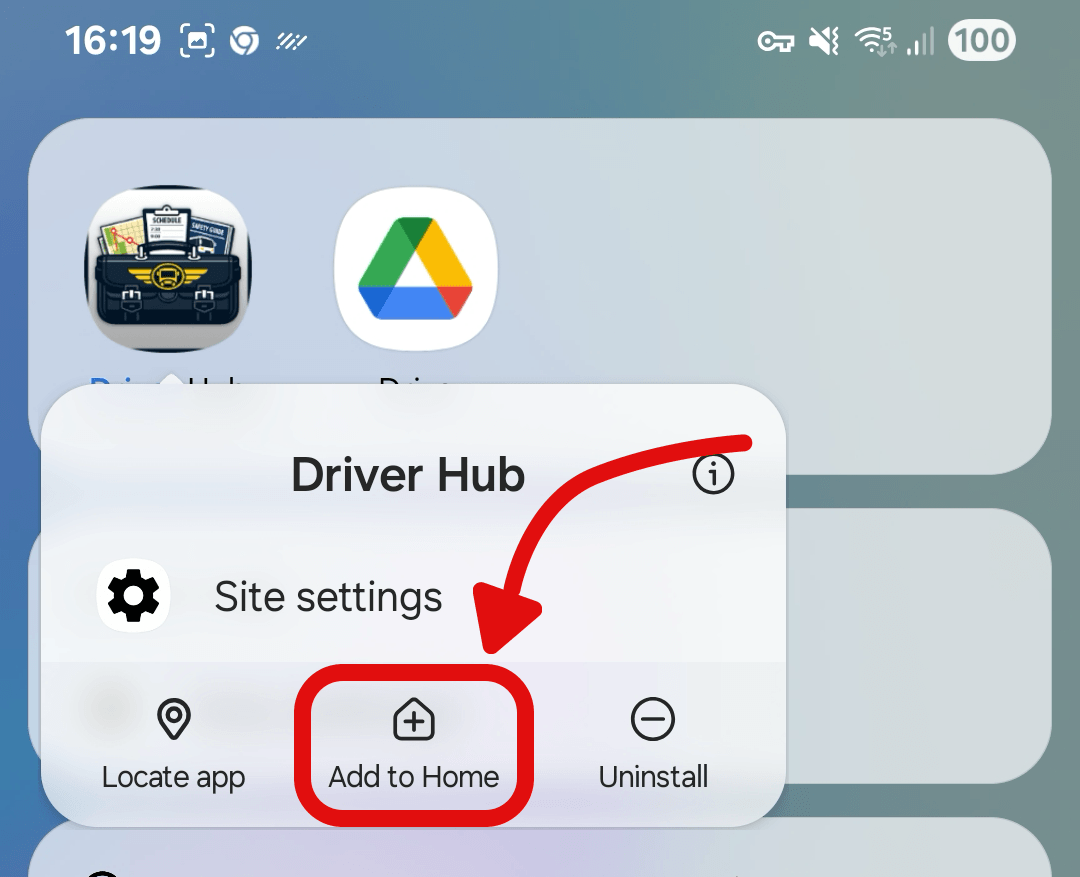
e. Tap and hold the icon, then tap Add to Home to add an icon to the home screen
iPhone Procedure
1. Open DRH website
QR Code Method
- Open the camera app and point it at this QR code
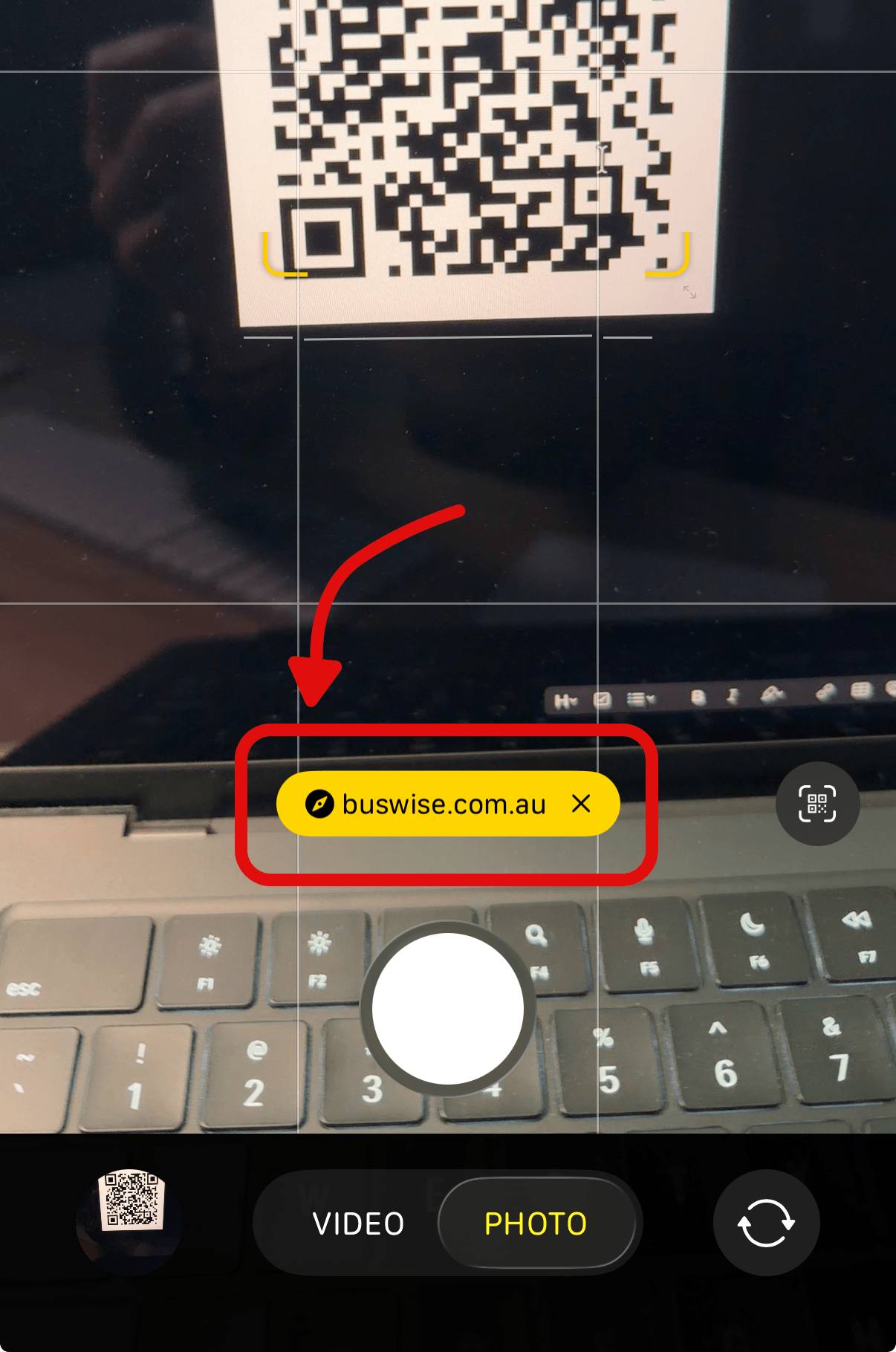
- Tap on the yellow oval that says buswise.com.au
Browser Method
- Open Safari web browser
- Navigate to: pan.drh.buswise.com.au
2. Install Web App
The Driver Resource Hub is a Web App. That means it can be installed without an app store.
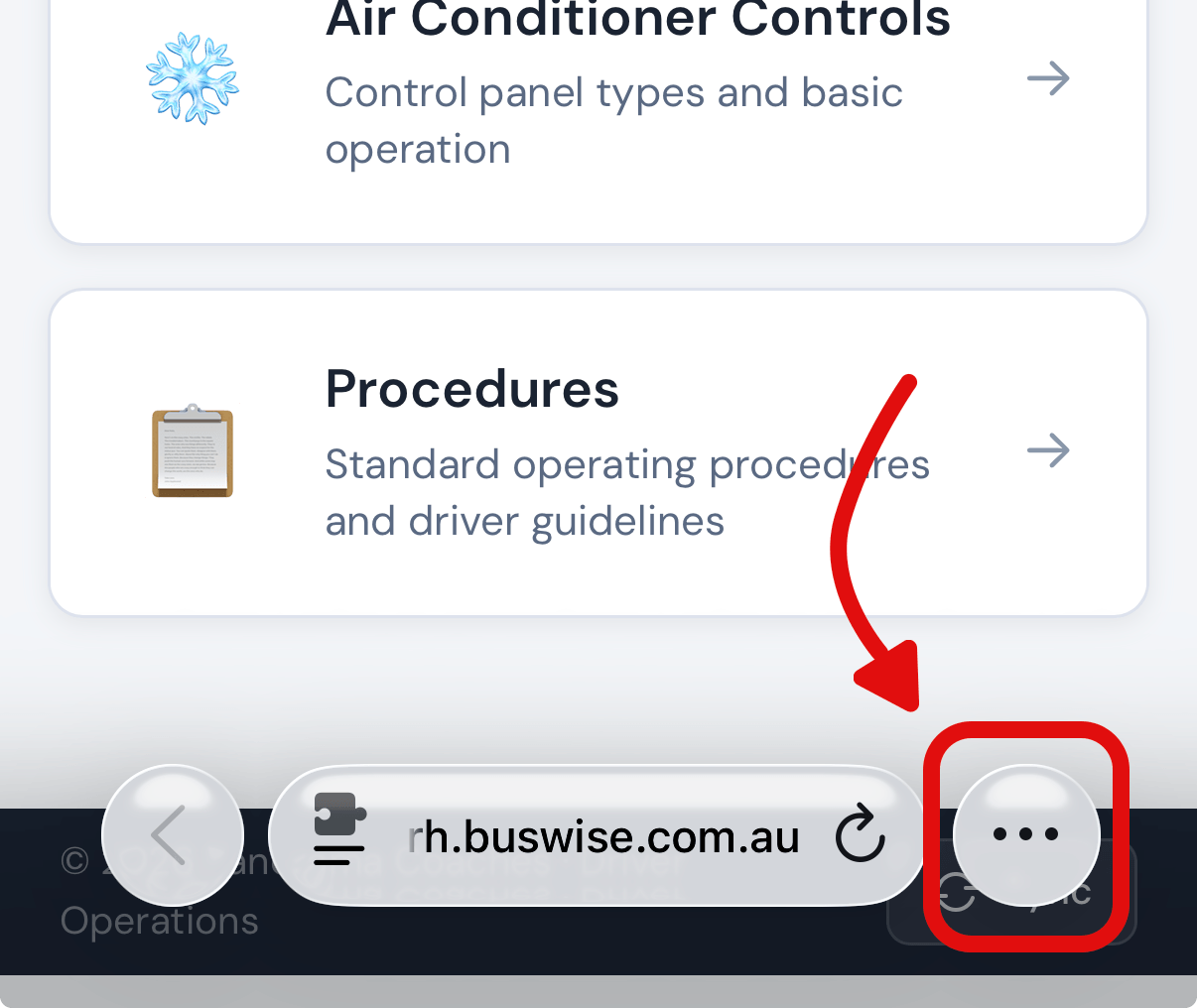
- Tap on the ellipsis in the lower right corner
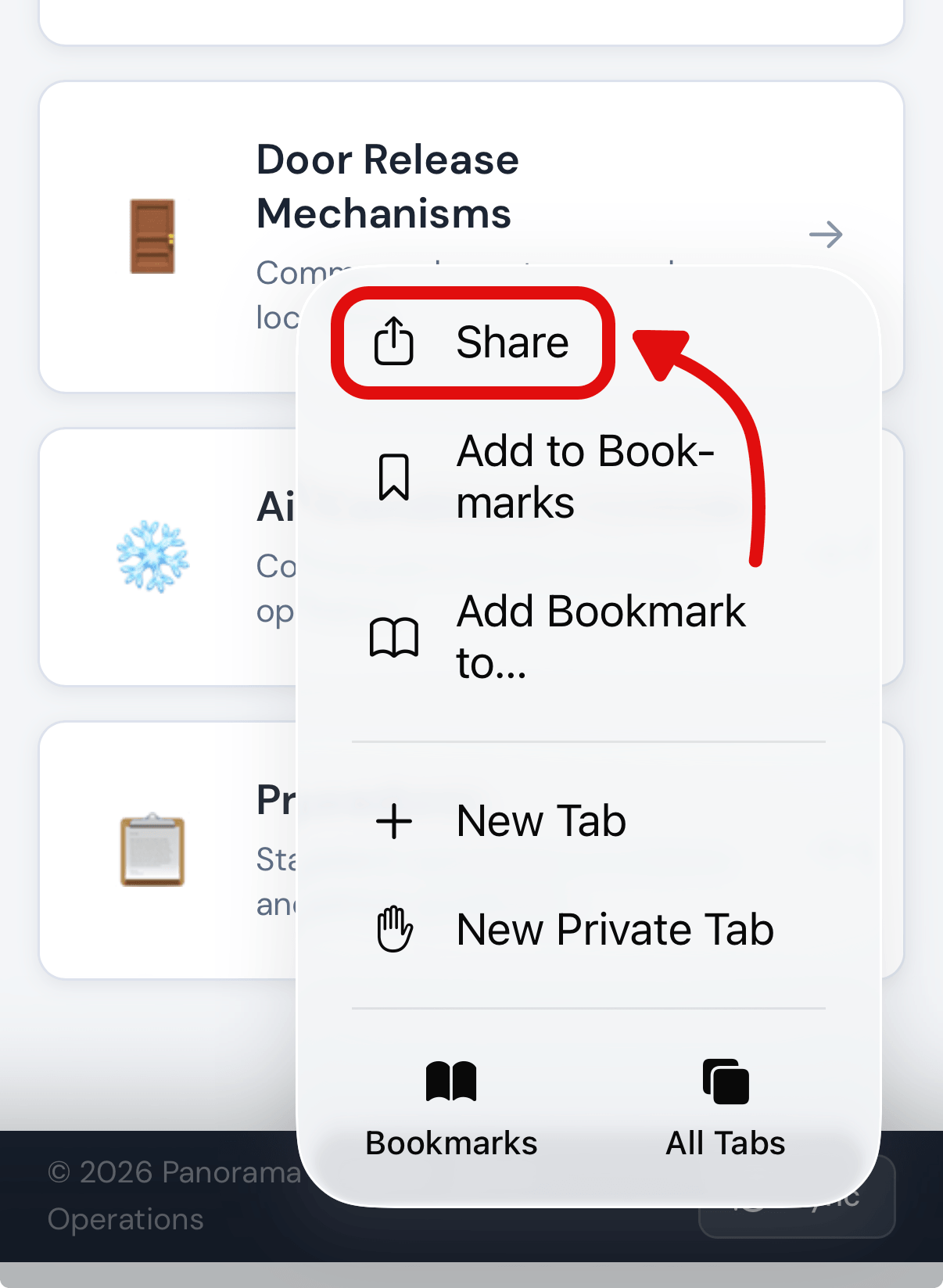
b. Tap the share icon
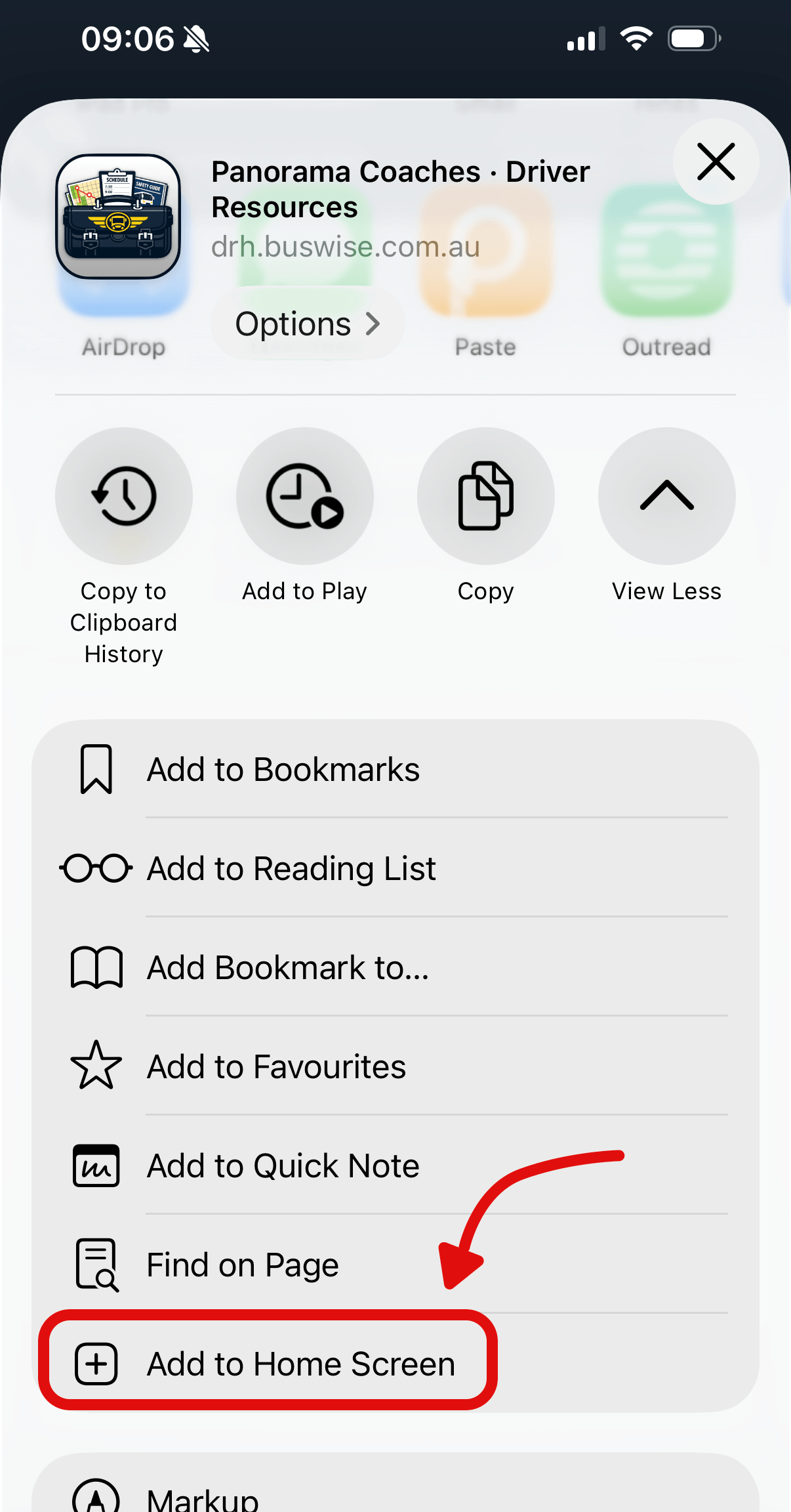
c. Scroll down and tap Add to Home Screen
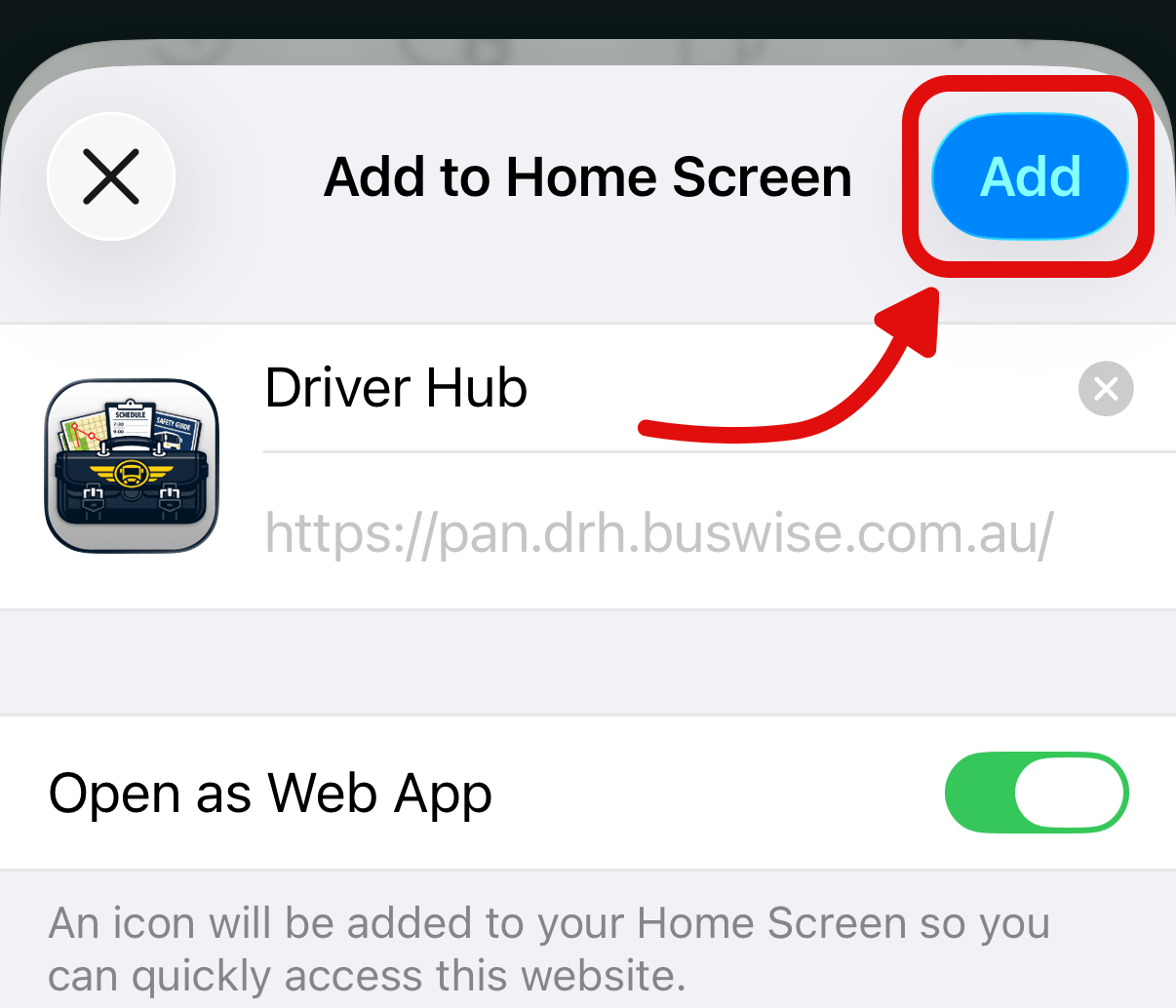
d. Tap the blue Add button in the upper right corner. The app icon will be aded to the Home Screen.
Review Schedule and Change Log
| Version | Date | Author | Change Summary |
| 1.0 | 2026-05-28 | Joel Smith | Initial draft |